Create a courier
What a courier is in Zonal
A courier in Zonal is a container you can link Shipping Rates to. Once set up, it helps determine which delivery option is available to customers at checkout.
When you create a courier, you add its basic details and can optionally control when it is offered by using Blacklist and Whitelist collections.
Each courier must have its own unique Courier Reference Code. Zonal uses this code to identify the courier in Shopify.
Create a courier
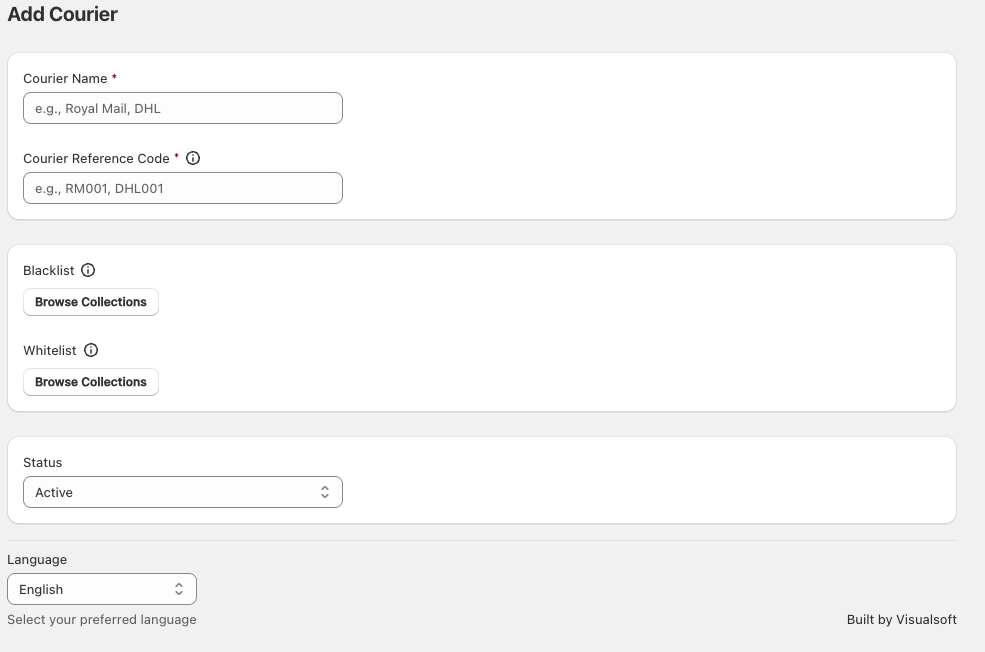
In the Zonal app, go to Couriers and click Add Courier.
In Courier Name, enter a name your team will recognise. This can match the shipping service you use, such as Royal Mail or DHL, or describe the delivery promise, such as Standard Delivery (48 hrs).
In Courier Reference Code, enter a unique code for that courier. For example, you might use a provider code or your own internal naming pattern, such as RM001 or DHL001.
If needed, use Blacklist or Whitelist and click Browse Collections to select product collections.
Whitelist: the courier is offered only when the basket contains only products from the selected whitelisted collections.
Blacklist: the courier is not offered when the basket contains any products from the selected blacklisted collections.
Use the Status dropdown to choose whether the courier should be available. New couriers can be created with Active selected if you want them ready for use straight away.
How to name a courier
Choose a name that makes the courier easy to identify when you link it to Shipping Rates later.
Use the shipping provider name if that is clearest for your team, such as Royal Mail.
Use the delivery speed if that better matches how you sell delivery options, such as Standard Delivery (48 hrs).
Keep names consistent so similar services are easy to compare.
If customers see delivery options based on speed rather than provider, naming couriers by expected delivery time can make setup easier to manage.
How blacklist and whitelist rules work
Whitelist
Use Whitelist when a courier should only be available for specific product collections.
If a basket contains only products from the whitelisted collections, the courier can be offered. If the basket includes products outside those collections, the courier will not be offered.
Blacklist
Use Blacklist when a courier should be excluded for certain product collections.
If the basket contains any product from a blacklisted collection, the courier will not be offered.
Be careful when combining collection rules. A restrictive whitelist or an incorrect blacklist can stop a courier from appearing when you expect it to.
Before you save
Make sure Courier Name is clear and easy to recognise.
Make sure Courier Reference Code is unique.
Check that any Blacklist or Whitelist collections reflect when the courier should be shown.
Confirm Status is set correctly.
Related information
If you need help choosing or managing the identifier used for a courier, see About courier reference codes.