
Change the shipping rate message
Change the checkout shipping rate message
Use Settings in Zonal to control how your shipping rate message appears to customers at checkout. You can choose a standard layout with a generic estimate, or switch to a customisable format to change how the delivery date is displayed.
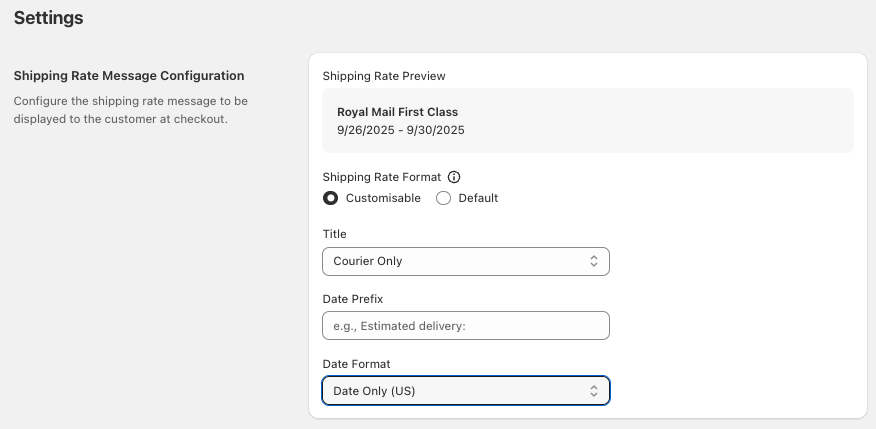
Where to find this setting
Shipping Rate Format options
Default
Select Default if you want to use a standard checkout message with a generic shipping estimate.
With Default, you can still choose what appears in the courier title using the Title dropdown:
- Courier Only
- Courier & City
- Courier, City, and Postcode
This option is best if you want a simple, consistent message format without changing how the date is shown.
Customisable
Select Customisable if you want more control over the message shown at checkout.
Like the default option, you can choose the courier title format in the Title dropdown:
- Courier Only
- Courier & City
- Courier, City, and Postcode
You can also customise the delivery date using the Date Format dropdown. Available formats include:
- Named Day Full — for example,
Friday 26 September - Date Only — for example,
26/09/25 - Date Only (US) — for example,
9/26/2025
If you want extra text before the date, enter it in Date Prefix. For example:
Estimated delivery:Expected by:Delivery estimate:
This prefix is shown before the date in the checkout message.
Recommended setup
Choose your format based on how much control you need:
- Use Default for a quick setup with a generic shipping estimate.
- Use Customisable if you want the date to match your store's preferred display style or regional date format.
What customers will see
The checkout message can include:
- The courier name only
- The courier name and city
- The courier name, city, and postcode
- An estimated delivery date
- Optional prefix text before the date
For example, depending on your settings, a customer might see a message such as:
Royal Mail First ClassRoyal Mail First Class - LeedsRoyal Mail First Class - Leeds LS1Estimated delivery: Friday 26 September